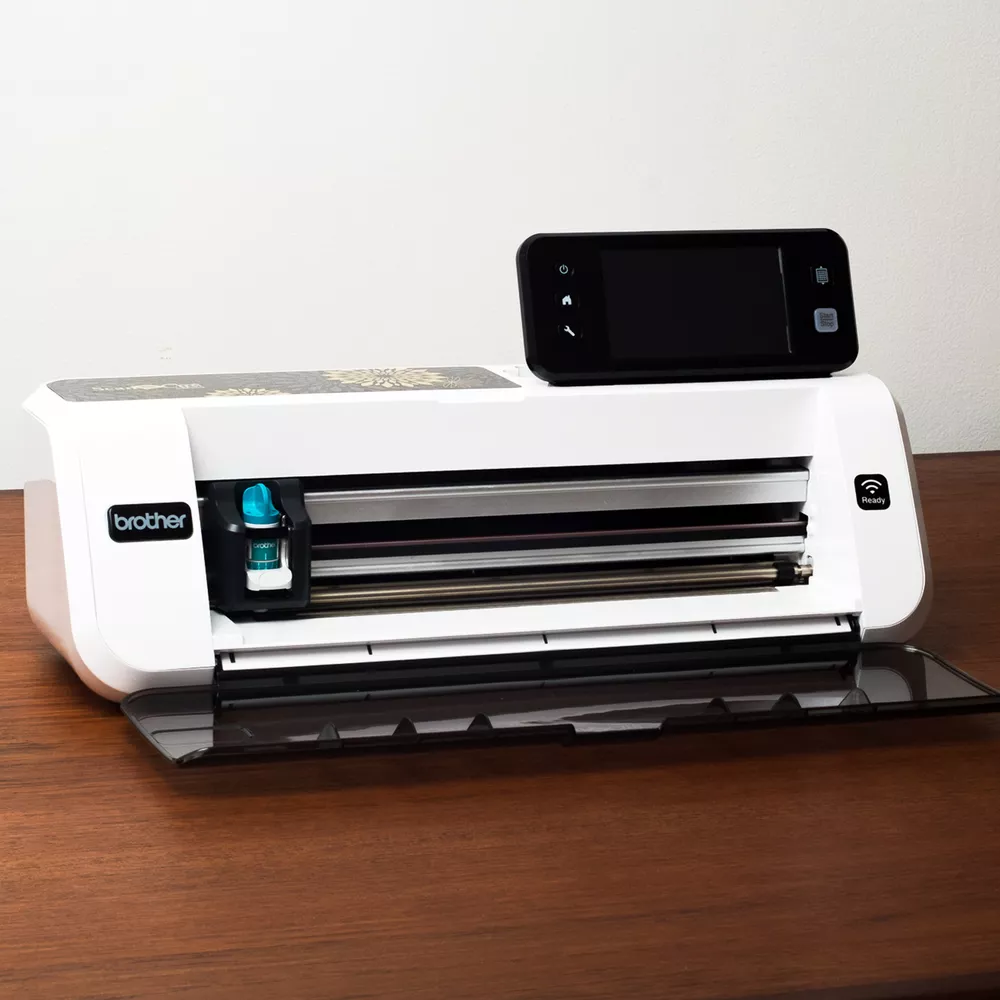


The Brother ScanNCut2 CM350E is a discontinued electronic cutting machine that still stands out for one reason: it combines a built-in scanner, an onboard touchscreen, and a standalone cutting workflow in the same machine. That makes it unusually useful for crafters who start with physical artwork, stamped images, paper shapes, or applique pieces instead of designing every project on a computer.
It is no longer the obvious choice for someone who wants the newest Brother cutting technology. Brother now lists the CM350E as discontinued, while newer ScanNCut DX machines add features such as Blade Sensor Technology and a deeper cutting capacity. But Brother still lists the CM350E in current CanvasWorkspace support information, so discontinued does not mean unusable or unsupported.
Quick Verdict: Is the Brother ScanNCut2 CM350E Still Worth Buying?
Jump to:
The CM350E can still make sense in 2026 if you already own one or find a used machine in good condition and specifically value its scanner-first workflow. The built-in scanner lets you bring physical artwork into the machine, trace or position it on screen, and create cutting data without rebuilding every design from scratch in desktop software.
Its biggest strength is independence from a computer for many everyday jobs. Its biggest limitation is age: it uses the older standard-blade system rather than the automatic blade-sensing system found on ScanNCut DX models, and buyers now need to evaluate used condition, mat and blade availability, wireless setup, and current software compatibility rather than simply comparing new-retail prices.
Consider it if: you work with stamped images, hand-drawn shapes, scrapbook elements, applique pieces, paper crafts, or physical designs that benefit from scanning.
Compare a newer ScanNCut DX instead if: you want Brother’s later Auto Blade workflow, deeper material capacity, or a current-generation machine.
Brother ScanNCut2 CM350E Specs at a Glance
| Specification | Brother ScanNCut2 CM350E |
|---|---|
| Machine type | Electronic cutting machine with built-in scanner |
| Built-in scanner | 300 DPI |
| Display | 4.85-inch color LCD touchscreen |
| Built-in designs | 631 |
| Built-in quilt patterns | 100 |
| Built-in lettering fonts | 7 |
| Maximum stated material thickness | Up to 2 mm, subject to material compatibility and test cutting |
| Standard work area | 12 x 12 inches |
| Optional longer mat | 12 x 24 inches |
| Wireless transfer | Supported through Brother’s ScanNCut / CanvasWorkspace workflow |
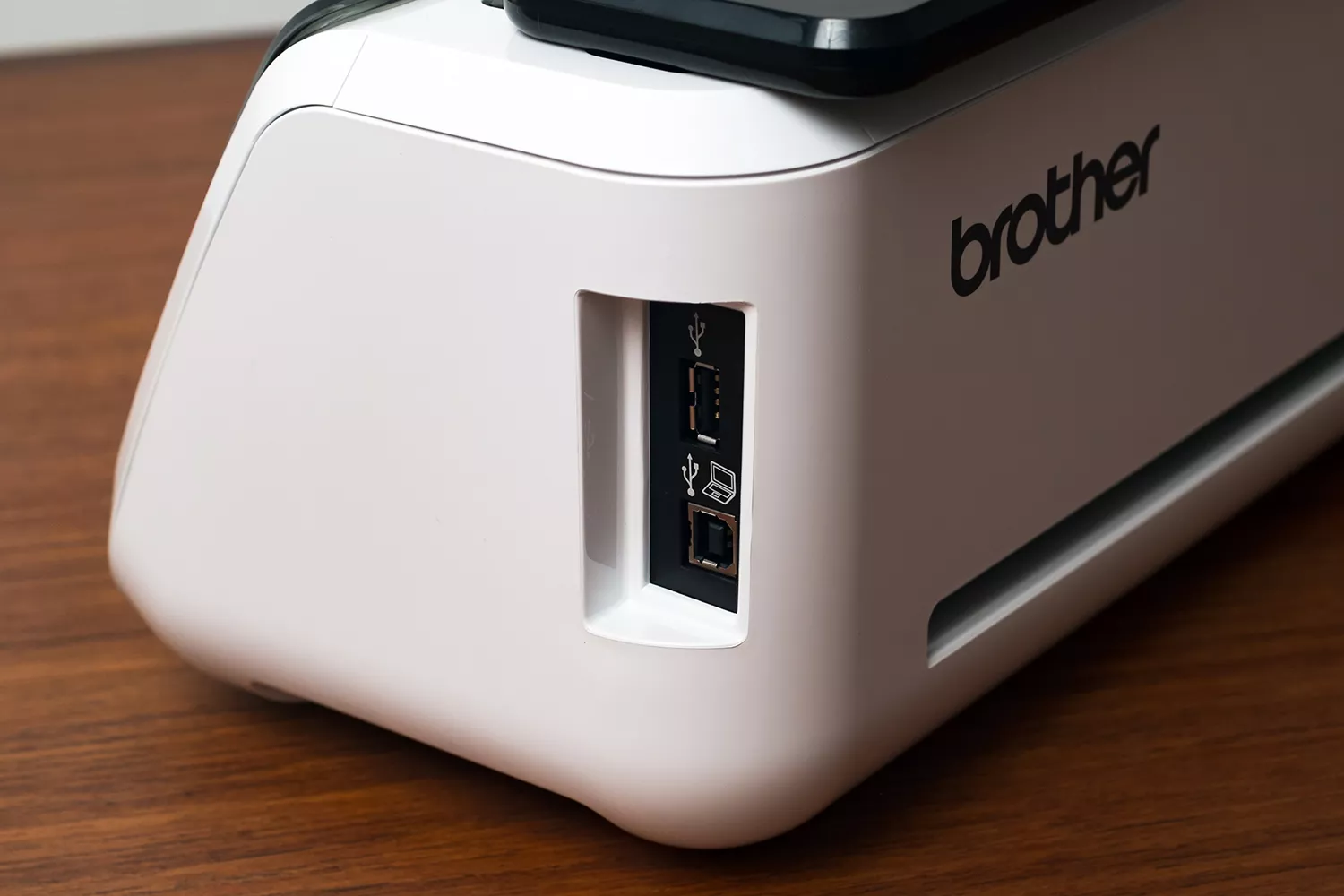
| USB | Supported |
| Blade system | Standard manually adjusted blade and holder |
| Current product status | Discontinued |
| Current software path | CanvasWorkspace; Brother also lists Artspira as ScanNCut-compatible software |
What Is the Brother ScanNCut2?
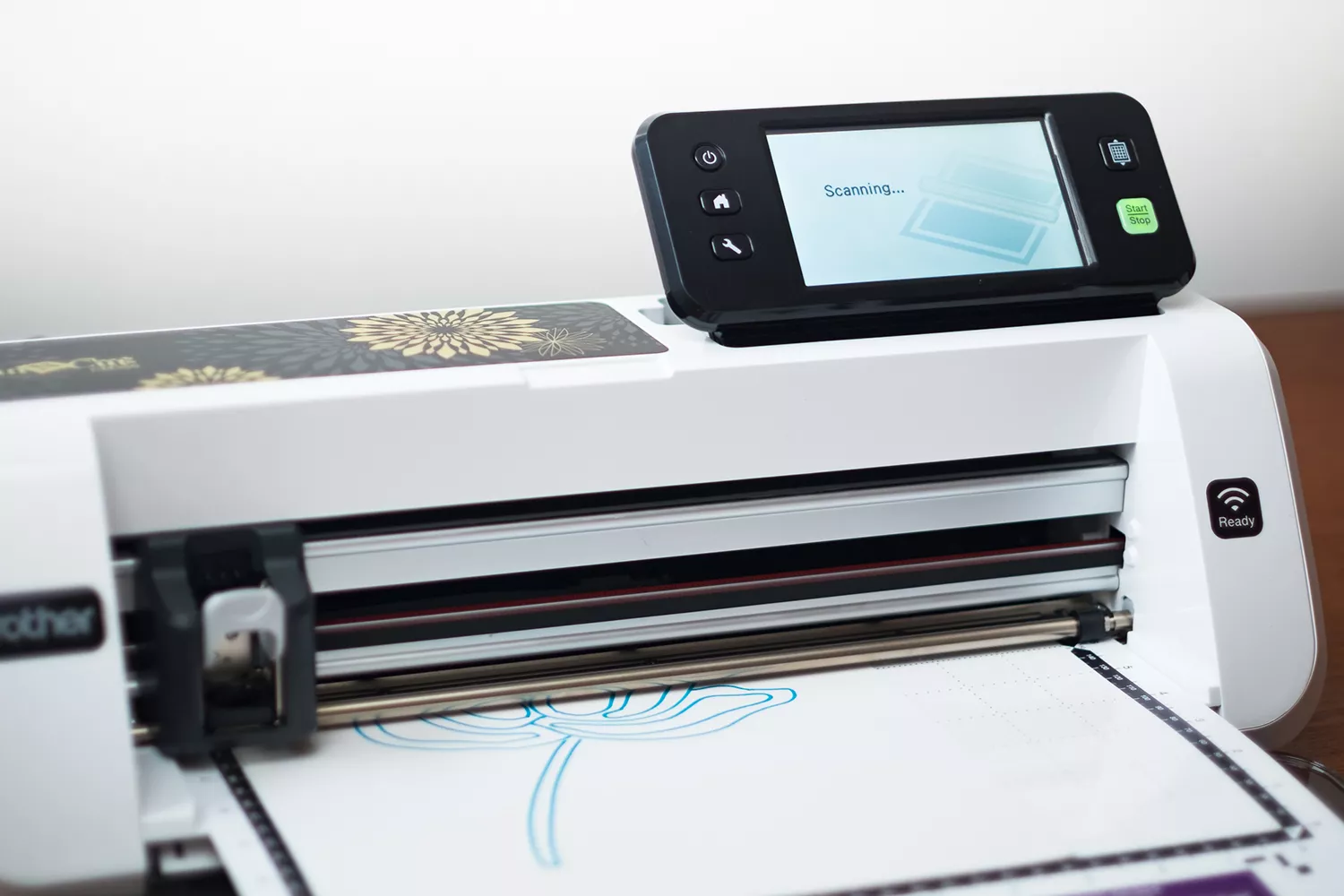
The Brother ScanNCut2 CM350E is an electronic craft cutting machine with a built-in scanner and touchscreen. Unlike a software-first cutter that expects you to prepare almost everything on a phone or computer, the CM350E can scan physical artwork, display the scan on the machine, create or position cutting data, and cut directly from a mat.
That scanner-centric workflow is the reason the machine remains interesting even though it is from an older ScanNCut generation.
What Can the Brother ScanNCut2 Do?
- Scan physical artwork: bring hand-drawn shapes, stamped images, paper designs, or fabric motifs into the machine.
- Create cut lines from scanned artwork: use Scan-to-Cut features to turn suitable outlines or regions into cutting data.
- Cut built-in patterns: use the machine without first creating a file on a computer.
- Edit designs on screen: resize, position, combine, and adjust supported designs from the touchscreen.
- Cut paper and cardstock: useful for cards, scrapbooking, labels, decorations, and layered paper crafts.
- Cut vinyl and heat-transfer material: with the correct mat, blade setup, and test cut.
- Cut supported fabric: with the appropriate Brother fabric support sheet or applique contact sheet and a compatible fabric setup.
- Draw with pens: the original accessory system supports pen holders for drawing and writing functions.
- Transfer digital cutting data: through USB or Brother’s software workflow.
The Built-In Scanner: Why It Still Matters
The scanner is the feature that separates ScanNCut2 from many older electronic cutters.
Artwork -> Scan -> Detect or trace -> Edit or position -> Cut
That can be useful when your starting point is something physical rather than a downloaded SVG.
Hand-drawn artwork
You can scan a suitable drawing or outline and use the machine’s scan-to-cut tools to create cutting data. This avoids recreating a simple physical drawing from scratch in vector software.
Stamped images
For paper crafts, scanning can help position cut lines around stamped or printed elements. This is particularly useful when the design already exists on the material you want to cut.
Scrapbook and paper elements
Background Scan lets you see scanned material on the touchscreen and position a cutting design over the area you want to use.
Fabric and applique shapes
The scanning workflow can also be useful for applique and quilt-related shapes when the fabric, support sheet, mat, and blade setup are appropriate for the material.

Can You Use the Brother ScanNCut2 Without a Computer?
Yes, for many tasks. The CM350E has built-in designs, a touchscreen, onboard editing, scanning, and direct cutting controls, so you can complete many paper, applique, scanning, and built-in-pattern projects without starting on a computer.
A computer or mobile workflow is still useful for CanvasWorkspace, imported artwork, more complex design preparation, file conversion, organization, and wireless or USB transfer.
CM350 vs. CM350E: What Is the Difference?
Brother maintains separate product records for the CM350 and CM350E, and both are now listed as discontinued. Their official product information shares the same core ScanNCut2 identity: a 300 DPI built-in scanner, 631 built-in designs, touchscreen editing, and cutting of compatible materials up to 2 mm.
Brother’s current public product pages do not provide a simple universal statement that the E suffix means a different cutting engine or scanner. For a used purchase, verify the exact model label, included activation materials, accessories, and seller bundle rather than assuming that every CM350 and CM350E package originally contained exactly the same extras.
CM350E vs. CM650WX
Brother’s own ScanNCut comparison chart shows that the CM350E and CM650WX belong to the same pre-DX generation: both use the standard manually adjusted blade system rather than Blade Sensor Technology, both support wireless transfer, and both use a similar 4.87-inch touchscreen format.
The CM650WX was positioned as a higher-tier dealer model and added dealer-exclusive features and accessories, including a 24-inch scanning function and a larger accessory package.
| Feature | CM350E | CM650WX |
|---|---|---|
| Generation | ScanNCut2 / pre-DX | ScanNCut2 / pre-DX |
| Blade Sensor Technology | No | No |
| Blade system | Standard manual blade | Standard manual blade |
| Touchscreen | About 4.87 inches | About 4.87 inches |
| Wireless transfer | Supported | Supported |
| 24-inch scan function | No | Dealer-exclusive feature |
What Materials Can the Brother ScanNCut2 Cut?
Brother states that the CM350E can cut compatible materials up to 2 mm thick. Thickness alone does not guarantee compatibility: density, rigidity, surface texture, blade condition, mat grip, and cutting settings all affect the result.
| Material | Practical guidance |
|---|---|
| Paper | A core use case; choose a mat and settings appropriate to the paper weight. |
| Cardstock | Supported as a common craft material; perform a test cut before the full project. |
| Adhesive vinyl | Suitable with the correct blade depth, pressure, mat, and test cut. |
| Heat-transfer vinyl | Can be cut as a craft film; follow the material manufacturer’s application instructions after cutting. |
| Fabric | Use the appropriate Brother fabric support system and test before cutting final pieces. |
| Specialty materials | Do not rely on thickness alone; confirm compatibility and perform a trial cut. |
Can the Brother ScanNCut2 Cut Vinyl?
Yes. Vinyl is a practical use for the CM350E, but there is no single blade-depth or pressure number that should be treated as universal for every brand and type of vinyl.
- Place the vinyl on a suitable cutting mat.
- Install the correct blade and holder.
- Set a conservative blade depth and pressure.
- Run a small test cut.
- Check whether the vinyl layer is cut cleanly without unnecessarily cutting through the backing.
- Adjust before sending the full design.
Can the Brother ScanNCut2 Cut Fabric?
Yes, with the correct fabric preparation and support materials. Brother documents two fabric-support approaches for this generation.
For lightweight fabric used in quilt piecing, Brother recommends a high-tack adhesive fabric support sheet attached to the standard mat. For applique work, Brother documents an iron-on fabric applique contact sheet that reinforces the back of suitable fabric before cutting.
Always perform a test cut before committing a finished fabric piece.
Brother ScanNCut2 for Beginners
Beginner advantages
- Built-in designs let you cut without first learning design software.
- The scanner makes physical artwork a legitimate starting point.
- The touchscreen lets you position and edit many designs directly on the machine.
What takes time to learn
- manual blade-depth adjustment;
- cut pressure;
- mat selection and care;
- scan modes;
- CanvasWorkspace;
- wireless or USB transfer;
- fabric support sheets;
- test-cut discipline.
How to Use the Brother ScanNCut2: Basic Workflow
- Choose, scan, or prepare a design.
- Choose the material and mat.
- Place the material securely.
- Install the blade or tool.
- Run a test cut.
- Adjust blade depth or pressure if needed.
- Position and send the cut.
- Unload and remove the material carefully.
Brother ScanNCut2 Accessories: What Actually Matters?
Essential
- Standard blade and holder
- 12 x 12 standard mat
- Replacement mats
- Replacement blades
Useful for specific projects
- Low-tack mat
- Scanning mat
- High-tack fabric support sheet
- Iron-on fabric applique contact sheet
- Pen holder and pens
- 12 x 24 mat
When buying accessories for a discontinued machine, verify that the accessory explicitly supports the CM-series machine you own rather than assuming a newer DX accessory fits.
Check Current Availability on Amazon
The ScanNCut2 Standard Blade
The CM350E uses Brother’s older standard blade and holder system. Blade depth is manually adjusted rather than automatically detected by the machine. A setting that works for lightweight cardstock may be wrong for adhesive vinyl or another material, and a worn blade can behave differently from a new one.
Mats and Replacement Mats
Brother documentation for this generation includes a 12 x 12 standard cutting mat and supports an optional 12 x 24 work area. Brother also offers specialized mats and support sheets for lighter materials, scanning, and fabric workflows.
Brother ScanNCut2 Software in 2026
The CM350E may be discontinued as a product, but Brother still lists it in current CanvasWorkspace operating-system support information.
Brother’s current support page lists CanvasWorkspace compatibility with Windows 11 64-bit and macOS 13, 14, 15, and 26, and the CM350E appears in the group of covered ScanNCut models. Brother also currently identifies both CanvasWorkspace and Artspira as software that can be used with ScanNCut machines.
Can Brother ScanNCut2 Use SVG Files?
Brother’s CM350E product page says the machine can work with SVG data, while Brother’s current general ScanNCut software support identifies FCM as the machine’s cutting-data format.
The safest current workflow is to treat CanvasWorkspace as the bridge between an SVG design and the cutting data used by the ScanNCut. Open or import the artwork through Brother’s current software workflow, inspect the converted cut lines, and test before cutting valuable material.
Templates and Built-In Designs
Brother’s CM350E product documentation lists 631 built-in designs, including 100 quilt patterns and seven lettering fonts. Built-in designs are most useful when you want to work without software, while imported or software-prepared designs expand the machine beyond its onboard library.
Brother ScanNCut2 vs. Cricut Explore Air 2
The biggest difference is not raw material count. It is the workflow.
| Feature | Brother ScanNCut2 CM350E | Cricut Explore Air 2 |
|---|---|---|
| Built-in scanner for physical artwork | Yes, 300 DPI | No equivalent full-page craft scanner; uses Print Then Cut sensing |
| Built-in touchscreen | Yes | No; controlled through Design Space on a connected device |
| Standalone built-in patterns | Yes | Design workflow centers on Design Space |
| Design software | CanvasWorkspace / Brother ecosystem | Cricut Design Space |
| 12 x 12 mat | Supported | Supported |
| 12 x 24 mat | Supported as optional work area | Supported |
| Vinyl and cardstock | Supported with appropriate setup | Supported |
Choose ScanNCut2 if…
- You value scanning physical artwork directly.
- You want onboard patterns and touchscreen editing.
- You work with stamped images, paper pieces, applique shapes, or hand-drawn outlines.
Choose Cricut Explore Air 2 if…
- You prefer Cricut Design Space.
- You already own Cricut mats, tools, or project files.
- Your normal workflow starts digitally on a phone or computer.
See the Craft Ideas Cricut Explore Air 2 review.
Brother ScanNCut2 vs. ScanNCut DX
| Feature | ScanNCut2 CM350E | ScanNCut DX generation |
|---|---|---|
| Blade system | Manual standard blade | Auto Blade / Blade Sensor Technology on supported DX models |
| Maximum stated material thickness | Up to 2 mm | Up to 3 mm on models such as SDX85 |
| Built-in scanner | Yes | Yes |
| Wireless | Supported | Supported on wireless DX models |
If you enjoy the CM350E scanner but dislike manual blade adjustment, ScanNCut DX is the natural Brother comparison.
Is the Brother ScanNCut2 Still Supported?
Yes, in the sense that Brother still provides current support resources that include the CM350E. Brother’s help system still lists the model for manuals, USB-media guidance, blade-holder information, software information, and CanvasWorkspace operating-system support.
That does not mean Brother is still manufacturing or selling the machine as a current product.
- Product production: discontinued.
- Manuals and help documentation: still available.
- CanvasWorkspace OS support: current Brother documentation still includes CM350E.
- Consumables and accessories: verify each replacement part for current availability and CM-series compatibility.
Is the Brother ScanNCut2 Discontinued?
Yes. Brother’s current cutting-machine catalog labels the CM350E as discontinued. This is not the same as saying the machine is unsupported.
Is a Used Brother ScanNCut2 Worth Buying?
A used CM350E can be reasonable if the scanner is the feature you specifically want and the machine is complete and working.
- Power and startup: the machine should boot without errors.
- Touchscreen: verify touch response across the display.
- Scanner: run an actual scan.
- Mat feed: confirm the rollers load and move the mat correctly.
- Blade holder: make sure the correct holder is present.
- Test cut: ask for a basic cut if possible.
- Wireless and USB: test the transfer method you expect to use.
- Mats and blades: check replacement availability before buying.
- Software: install current CanvasWorkspace on your computer first if compatibility is critical.
Brother ScanNCut2 Pros and Cons
Pros
- Built-in scanner: physical artwork can become a practical starting point for cutting.
- Standalone workflow: many projects can be scanned, edited, positioned, and cut without a computer.
- Onboard design library: useful for quick projects.
- Broad craft workflow: paper, vinyl, and supported fabric projects.
- Current Brother software documentation still includes the model.
Cons
- Discontinued hardware
- Manual blade workflow
- Legacy accessory planning
- Older software-era workflow
Who Should Buy the CM350E in 2026?
| Situation | Decision direction |
|---|---|
| You already own a working CM350E | Keep using it if software, mats, blades, and scanning still meet your needs. |
| You found a used CM350E in good condition | Consider it if the total cost is meaningfully below a current Brother alternative. |
| You want to scan hand-drawn or stamped artwork | The built-in scanner remains a strong reason to consider ScanNCut. |
| You want the newest Brother workflow | Compare ScanNCut DX before buying the older machine. |
| You dislike manual blade adjustment | Look closely at DX models with Auto Blade technology. |
| You need the longest possible support runway | A current-generation machine is the safer purchase. |
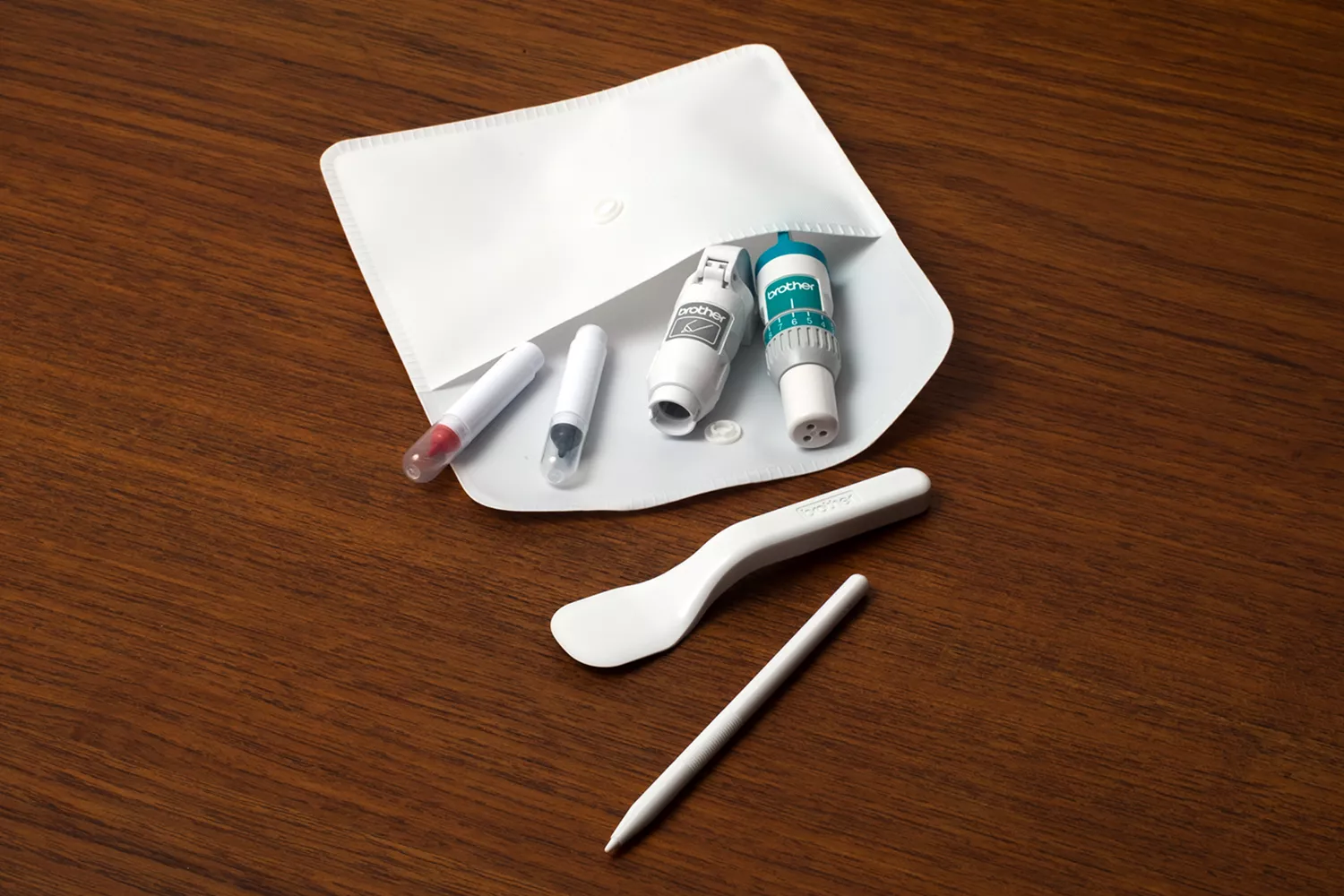
What Comes With the Brother ScanNCut2 CM350E?
| Item | Original standard package |
|---|---|
| Machine | Yes |
| Standard blade | Yes |
| Standard blade holder | Yes |
| 12 x 12 standard mat | Yes |
| Pen holder | Yes |
| Black pen | Yes |
| Touch pen / stylus | Yes |
| Spatula | Yes |
| Accessory pouch | Yes |
Wireless activation materials and promotional extras varied by package and period, so used buyers should evaluate the exact contents shown by the seller.
Brother ScanNCut2 Price and Availability
Brother now lists the CM350E as discontinued, so a single current retail price is not a useful way to evaluate it in 2026. Available units may be used, refurbished, open-box, or old stock.
Compare condition and completeness rather than focusing only on the asking price.
Check Current Availability on Amazon
FAQ
What is the Brother ScanNCut2?
The Brother ScanNCut2 CM350E is an electronic cutting machine with a built-in 300 DPI scanner and touchscreen. It can scan physical artwork, create or position cutting data, use built-in patterns, and cut compatible craft materials from a mat.
What can the Brother ScanNCut2 do?
It can scan physical artwork, cut built-in or imported designs, work with paper, cardstock, vinyl, supported fabric workflows, and draw with compatible pens.
Does Brother ScanNCut2 need a computer?
No for many projects. Built-in patterns, scanning, onboard editing, positioning, and cutting can be done directly on the machine. A computer or mobile workflow is still useful for CanvasWorkspace and file preparation.
Can Brother ScanNCut2 cut vinyl?
Yes. Use the correct mat and blade setup and perform a small test cut before the final design.
Can Brother ScanNCut2 cut fabric?
Yes, with compatible fabric preparation. Brother documents high-tack fabric support sheets and iron-on applique contact sheets for appropriate fabric workflows.
Can Brother ScanNCut2 use SVG files?
Brother’s CM350E product information references SVG support, while current ScanNCut software documentation identifies FCM as the machine cutting-data format. Using CanvasWorkspace to prepare and transfer compatible cutting data is the safest current workflow.
What software does ScanNCut2 use?
CanvasWorkspace remains the main Brother design and transfer environment for the CM350E. Brother’s current software support also lists Artspira as software that can be used with ScanNCut machines.
Is Brother ScanNCut2 still supported?
Brother has discontinued the CM350E as a product, but current Brother support information still includes it for CanvasWorkspace operating-system support, manuals, accessory guidance, and other help resources.
Is Brother ScanNCut2 discontinued?
Yes. Brother’s current cutting-machine catalog labels CM350E as discontinued.
Is Brother ScanNCut2 worth buying used?
It can be if you specifically value the built-in scanner and standalone workflow. Verify the scanner, touchscreen, mat feed, blade holder, test cutting, transfer workflow, replacement accessories, and current software setup before buying.
Final Verdict
The Brother ScanNCut2 CM350E should not be judged like a new 2026 cutting machine. It is a discontinued legacy model with an unusually useful feature: a built-in scanner tied directly to the cutting workflow.
If you already own one and CanvasWorkspace, mats, blades, and scanning still fit your projects, there is no automatic reason to replace it. If you are buying used, its value depends on condition, completeness, and how much you genuinely need the scanner-first workflow.
If your priority is current-generation Brother technology, automatic blade sensing, and a deeper cutting specification, compare ScanNCut DX before committing to an older CM350E.
If you are still deciding between brands and machine types, compare it with the Craft Ideas die-cutting machine guide and the Cricut Explore Air 2 review.