

The Cricut Explore Air 2 is still a useful full-size smart cutting machine, but its value in 2026 depends much more on price and project type than it did when it was new. It remains supported by Cricut’s current Help Center and Design Space workflow, yet it belongs to an older generation that requires a cutting mat and lacks some of the newer Explore and Maker features.
Affiliate disclosure: this article contains affiliate links. If you buy through an eligible link, Craft Ideas may earn a commission at no extra cost to you.
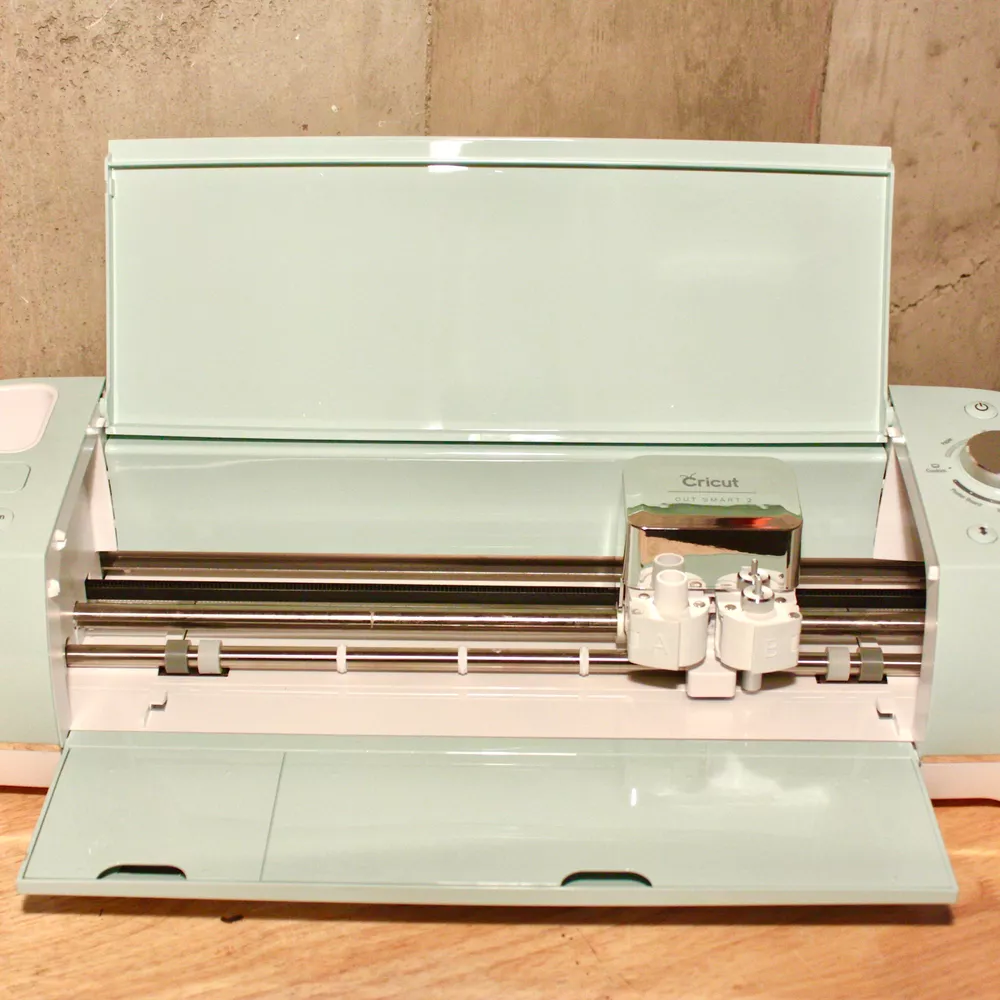
Cricut Explore Air 2 Quick Facts
Jump to:
| Specification | Cricut Explore Air 2 |
|---|---|
| Machine type | Smart cutting machine |
| Official dimensions | 22.17 × 7.01 × 5.91 in (56.31 × 17.80 × 15.01 cm) |
| Official weight | 10.98 lb (4.98 kg) |
| Compatible mats | 12 × 12 in and 12 × 24 in machine mats; Card Mat 2 × 2 is also supported |
| Maximum regular cut on 12 × 12 mat | 11.5 × 11.5 in (29.2 × 29.2 cm) |
| Maximum regular cut on 12 × 24 mat | 11.5 × 23.5 in (29.2 × 59.6 cm) |
| Materials | 100+ listed by Cricut, including common options such as cardstock, vinyl and iron-on |
| Connectivity | Built-in Bluetooth plus USB |
| Software | Cricut Design Space |
| Print Then Cut | Supported; Cricut currently specifies non-reflective white materials for Explore Air 2 and older |
| Matless Smart Materials | Not intended for matless use on Explore Air 2 |
| Fast Mode | Available for selected Vinyl, Iron-On and Cardstock settings; up to 2× faster than Cricut Explore Air |
Last verified against Cricut documentation: September 23, 2026.
Check current Cricut Explore Air 2 price and availability on Amazon
What Are the Cricut Explore Air 2 Dimensions?
The Cricut Explore Air 2 measures 22.17 inches long, 7.01 inches wide and 5.91 inches high, and Cricut lists its weight as 10.98 pounds. In metric units, that is approximately 56.31 × 17.80 × 15.01 cm and 4.98 kg.
| Measurement | Inches | Centimeters |
|---|---|---|
| Length | 22.17 in | 56.31 cm |
| Width / depth | 7.01 in | 17.80 cm |
| Height | 5.91 in | 15.01 cm |
| Weight | 10.98 lb | 4.98 kg |
This corrects an important error in the previous version of this article, which listed the machine at 10.98 pounds. Cricut’s current Quick Start Guide gives the much lower 10.98-pound figure.
How Much Desk Space Does a Cricut Explore Air 2 Need?
The machine’s physical footprint is only part of the space question. The Explore Air 2 is a mat-based cutter, so the mat must travel through the machine while a project runs. That means you need clear space in front of and behind the machine in addition to the roughly 22 × 7-inch body.
For a 12 × 24-inch mat, plan for substantially more front-to-back clearance than the machine depth alone suggests. Do not push the rear of the machine tightly against a wall or store supplies where they can block the mat path.
What Is the Cricut Explore Air 2 Maximum Cutting Size?
Regular cutting area is not the same as machine size. Cricut currently lists a maximum regular cut of 11.5 × 11.5 inches on a 12 × 12-inch mat and 11.5 × 23.5 inches on a 12 × 24-inch mat for the Explore Air 2 and older Explore machines.
| Load setup | Maximum regular cut area |
|---|---|
| 12 × 12 in mat | 11.5 × 11.5 in (29.2 × 29.2 cm) |
| 12 × 24 in mat | 11.5 × 23.5 in (29.2 × 59.6 cm) |
| Matless Smart Materials | Not supported as an intended workflow on Explore Air 2 |
Print Then Cut Has Different Limits
Print Then Cut uses registration marks and therefore has a different maximum area from ordinary cutting. Cricut’s current Help Center lists the Explore-series maximum on US Letter material as up to 9.94 inches vertically by 7.44 inches horizontally, with other supported paper sizes having their own limits.
The important buying point is simple: do not use the 11.5 × 23.5-inch regular cutting number as if it were the Print Then Cut area.
What Is a Cricut Explore Air 2?
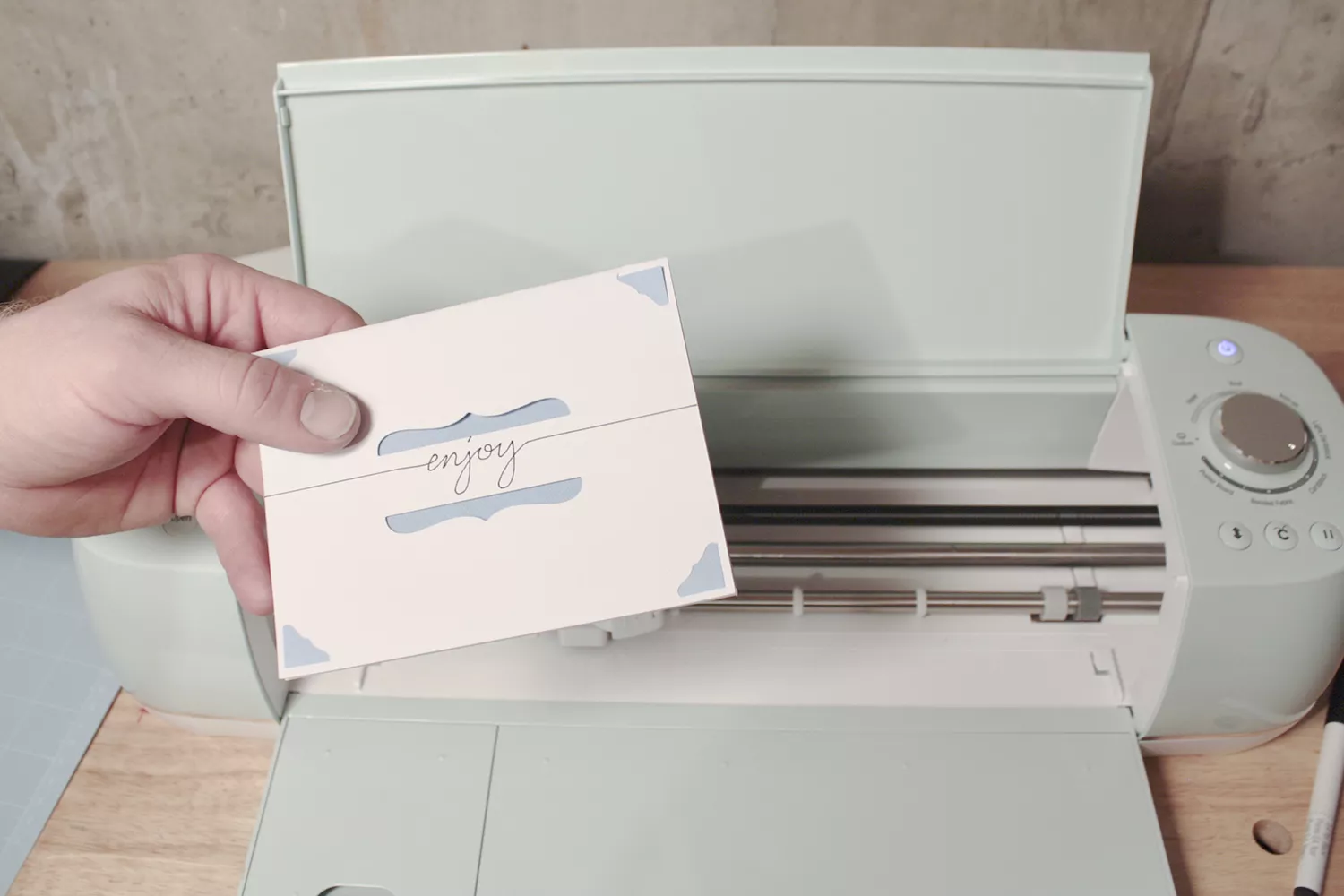
The Cricut Explore Air 2 is an electronic smart cutting machine that uses Cricut Design Space to turn digital designs into cuts, drawn lines, scoring lines and selected foil effects on compatible materials. It is not a printer. For Print Then Cut projects, a separate home printer prints the artwork first, and the Cricut then reads the registration marks and cuts around it.
The Explore Air 2 uses a dual-clamp carriage. Its core strengths are common DIY materials such as vinyl, iron-on and cardstock, plus a wide range of paper and specialty materials supported by Cricut settings.
What Does a Cricut Explore Air 2 Do?
The Explore Air 2 is best understood as a flexible digital cutter for everyday craft projects rather than an advanced heavy-material machine.
- Cut: vinyl, cardstock, paper, iron-on and many other Cricut-listed materials.
- Draw and write: Cricut pens and markers can add text, line art and decorative details.
- Score: compatible scoring tools can prepare fold lines for cards, envelopes and 3D paper projects.
- Foil: Cricut’s Foil Transfer Tool is listed as compatible with Explore machines.
- Print Then Cut: Design Space sends artwork to a separate printer, then the Explore Air 2 cuts the printed design.
- Use uploaded designs: Design Space supports user-uploaded image files, including SVG and DXF for cut workflows.
Cricut says Explore Air 2 works with 100+ materials. That does not mean every material uses the same blade or setting, and it does not mean the machine is suitable for every thick or rigid material.
What Can You Make With a Cricut Explore Air 2?
For most hobby crafters, the practical question is not how many materials the machine supports but whether those materials match the projects you want to make.
- Vinyl decals: names, labels, wall decals and simple signs.
- Iron-on shirts and totes: cut heat-transfer vinyl for apparel and fabric accessories.
- Cards and invitations: cardstock cutting, drawing and scoring make this one of the machine’s strongest use cases.
- Stickers: Print Then Cut works with compatible printable material, with current Explore Air 2 guidance centered on non-reflective white media.
- Paper decorations: party banners, gift tags, scrapbook pieces and layered paper crafts.
- Labels: useful for storage, classrooms, kitchens and craft-room organization.
- Stencils: cut compatible stencil material for paint projects.
- Selected fabric projects: bonded or backed fabric can be cut with compatible blade/mat setups.
For T-shirt projects that use printable transfers rather than cut HTV, see our guide to transfer paper for T-shirts.
What Materials Can the Cricut Explore Air 2 Cut?
Cricut’s current material database contains 100+ Explore Air 2-compatible settings. The safest way to think about compatibility is material + thickness + rigidity + blade + mat + cut setting, not simply a yes/no list.
| Material | Explore Air 2 guidance |
|---|---|
| Vinyl | Core supported material; Fine-Point Blade handles many common vinyl projects |
| Iron-on / HTV | Core supported material and one of the Fast Mode categories |
| Cardstock / paper | Core use case with many available settings |
| Sticker paper | Can be used in Print Then Cut when the media matches current Print Then Cut requirements |
| Bonded fabric | Supported with the Bonded-Fabric Blade or appropriate setup |
| Stiffened felt | Cricut lists Deep-Point Blade use for selected thicker materials including stiffened felt |
| Chipboard | Selected chipboard is supported with Deep-Point settings; thickness, density and rigidity matter |
| Natural wood veneer | Cricut provides an Explore Air 2 workflow using a StrongGrip mat and Deep-Point Blade |
| Balsa / thicker wood | Do not treat this as a general Explore Air 2 capability; Knife Blade is Maker-only |
Cricut notes that for Explore Air 2 and older machines, unlisted materials should only be tested when they are under 2.0 mm, and even then the actual limit depends on rigidity and density. A small test cut is still the sensible first step.
Can the Cricut Explore Air 2 Cut Fabric?
Yes, but the Explore Air 2 is best suited to bonded or backed fabric rather than the broader fabric workflow offered by Maker machines. Cricut’s Bonded-Fabric Blade is compatible with Explore machines and is intended for bonded fabric or fabric with an iron-on backer.
If your main goal is quilting, unbonded fabric or frequent textile work, a Maker model with Rotary Blade compatibility offers a different tool ecosystem and deserves comparison before you buy.
Can the Cricut Explore Air 2 Cut Wood?
It can cut selected thin wood products such as Cricut Natural Wood Veneer, but “wood” is too broad to treat as a universal capability. Cricut’s official veneer instructions use a StrongGrip mat and Deep-Point Blade on Explore Air 2. By contrast, the Knife Blade used for denser materials such as balsa wood is compatible only with Cricut Maker machines.
If thick wood is one of your primary project goals, the Explore Air 2 is not the machine I would choose around that requirement.
Can the Cricut Explore Air 2 Cut Felt?
Selected felt can be cut, but the felt type and tool matter. Cricut lists stiffened felt among thicker materials suited to the Deep-Point Blade, while the Bonded-Fabric Blade is intended for bonded fabrics. Test a small piece before committing to a large or detailed design.
Cricut Explore Air 2 Review — Quick Verdict
The Explore Air 2 remains a reasonable value machine for vinyl, cardstock, iron-on, labels, cards and ordinary mat-based DIY cutting. Its biggest advantages are the established Design Space workflow, 100+ material settings, built-in Bluetooth, USB and broad availability of compatible mats and basic tools.
Its limitations are more important in 2026 than they were at launch. It does not offer the intended matless Smart Materials workflow of Explore 3 and later machines, its Print Then Cut sensor is limited to non-reflective white media, and it cannot use Maker-only tools such as the Rotary Blade or Knife Blade.
| If you want to… | Explore Air 2 fit |
|---|---|
| Cut vinyl, cardstock and iron-on on mats | Good fit |
| Make cards, labels and paper crafts | Good fit |
| Make stickers with Print Then Cut | Useful, with older-generation color/media limitations |
| Cut bonded fabric occasionally | Possible with the right setup |
| Cut thick wood with Knife Blade | Choose a compatible Maker instead |
| Use long matless Smart Materials | Choose Explore 3 or later |
| Use advanced Maker tools | Choose a Maker-series machine |
Cricut Explore Air 2 Pros and Cons
Pros
- 100+ supported materials → broad hobby use: one machine can cover common paper, vinyl and iron-on projects without being tied to a single craft.
- Built-in Bluetooth and USB → flexible connection: you can work wirelessly when Bluetooth behaves well or use USB on a compatible computer.
- Fast Mode → quicker repeat projects: selected Vinyl, Iron-On and Cardstock settings can run up to 2× faster than the earlier Explore Air.
- Dual clamps → multi-function workflows: the machine can hold a blade in one clamp and a compatible pen or accessory in the other.
- Mature support documentation: Cricut still maintains Air 2-specific Help Center guidance in 2026.
Cons
- Mat required for normal cutting: previous-generation Explore machines are not intended for matless Smart Materials.
- Older Print Then Cut sensor: current Cricut guidance restricts Explore Air 2 and older to non-reflective white Print Then Cut media.
- Limited advanced tools: Rotary Blade, Knife Blade and QuickSwap tools belong to the Maker ecosystem rather than Explore Air 2.
- Older hardware generation: if its price is close to a newer Explore, the newer workflow may offer better long-term value.
Is the Cricut Explore Air 2 Still Supported?
Yes, Cricut still documents the Explore Air 2 in its current Design Space and Help Center workflows. Current support pages explain Air 2 machine selection, Bluetooth/USB pairing, material settings, mats, tools and setup. Cricut’s 2026 material-setting documentation still has a dedicated Explore Air 2 section.
That does not mean Cricut promises indefinite support. It means that as of this update, the model is still represented in current official documentation and Design Space workflows rather than being treated as an unsupported legacy device.
Is the Cricut Explore Air 2 Discontinued?
“Discontinued” and “unsupported” should not be used as synonyms. The Explore Air 2 is no longer Cricut’s current Explore generation, and Cricut’s US shopping page currently focuses on certified refurbished Explore Air 2 inventory rather than presenting it as the newest mainstream model. At the time of this update, that page lists refurbished Air 2 options as out of stock.
However, Cricut still maintains current Help Center documentation and Design Space instructions for the machine. So a buyer evaluating a used or refurbished unit should think of it as an older but still documented/supported model, while also comparing the price against newer Explore machines.
Is the Cricut Explore Air 2 Still Worth Buying?
The answer depends on the price gap and your projects.
Consider the Explore Air 2 if:
- You mainly cut vinyl, cardstock, iron-on, labels and ordinary paper projects.
- You are comfortable using 12 × 12 or 12 × 24 mats.
- You find a used or refurbished unit at a meaningful discount.
- You do not need Maker-only tools.
- You value an established machine with extensive tutorials and replacement supplies.
Consider a newer model if:
- The price difference is small.
- You want matless Smart Materials and longer cuts.
- You want a newer Print Then Cut workflow.
- You want the latest Explore generation rather than older hardware.
- You need Rotary Blade, Knife Blade or other Maker-only tools.
Check current Cricut Explore Air 2 price and availability on Amazon
Cricut Explore Air 2 vs Explore 3
| Feature | Explore Air 2 | Explore 3 |
|---|---|---|
| Regular workflow | Mat-based | Mat-based plus supported matless Smart Materials |
| Smart Materials without a mat | Not intended | Supported |
| Speed | Fast Mode up to 2× Explore Air on selected settings | Cricut states up to 2× faster than Explore Air 2 |
| Print Then Cut | Current guidance: non-reflective white media | Supports white and colored compatible media |
| Smart Set Dial | Yes | No; settings handled in Design Space |
| Cartridge port | Yes | No |
| Best reason to choose | Lower-cost mat-based workflow | Newer workflow and matless Smart Materials |
Explore 3 is the more capable choice for long matless cuts. Explore Air 2 is more attractive when its lower purchase price matters more than Smart Materials support. Note that Explore 3 is itself no longer Cricut’s newest Explore generation in 2026, so current buyers should also compare today’s lineup rather than treating Explore 3 as the newest option.
Cricut Explore Air 2 vs Cricut Maker
The biggest difference is not simply age. It is the tool ecosystem.
| Need | Explore Air 2 | Maker family |
|---|---|---|
| Vinyl / cardstock / iron-on | Strong fit | Strong fit |
| Bonded fabric | Supported with appropriate setup | Supported |
| Rotary Blade | Not compatible | Compatible on supported Maker models |
| Knife Blade | Not compatible | Compatible on supported Maker models |
| Advanced tool ecosystem | More limited | Broader |
| Best for | Everyday cutting and DIY | Users who need broader tool/material capabilities |
If your projects are mostly vinyl, paper and iron-on, paying for Maker capabilities may not improve the work you actually do. If fabric, thicker materials and advanced tooling are central to your plans, compare a Maker before choosing an Air 2 only because it is cheaper.
What Comes With the Cricut Explore Air 2?
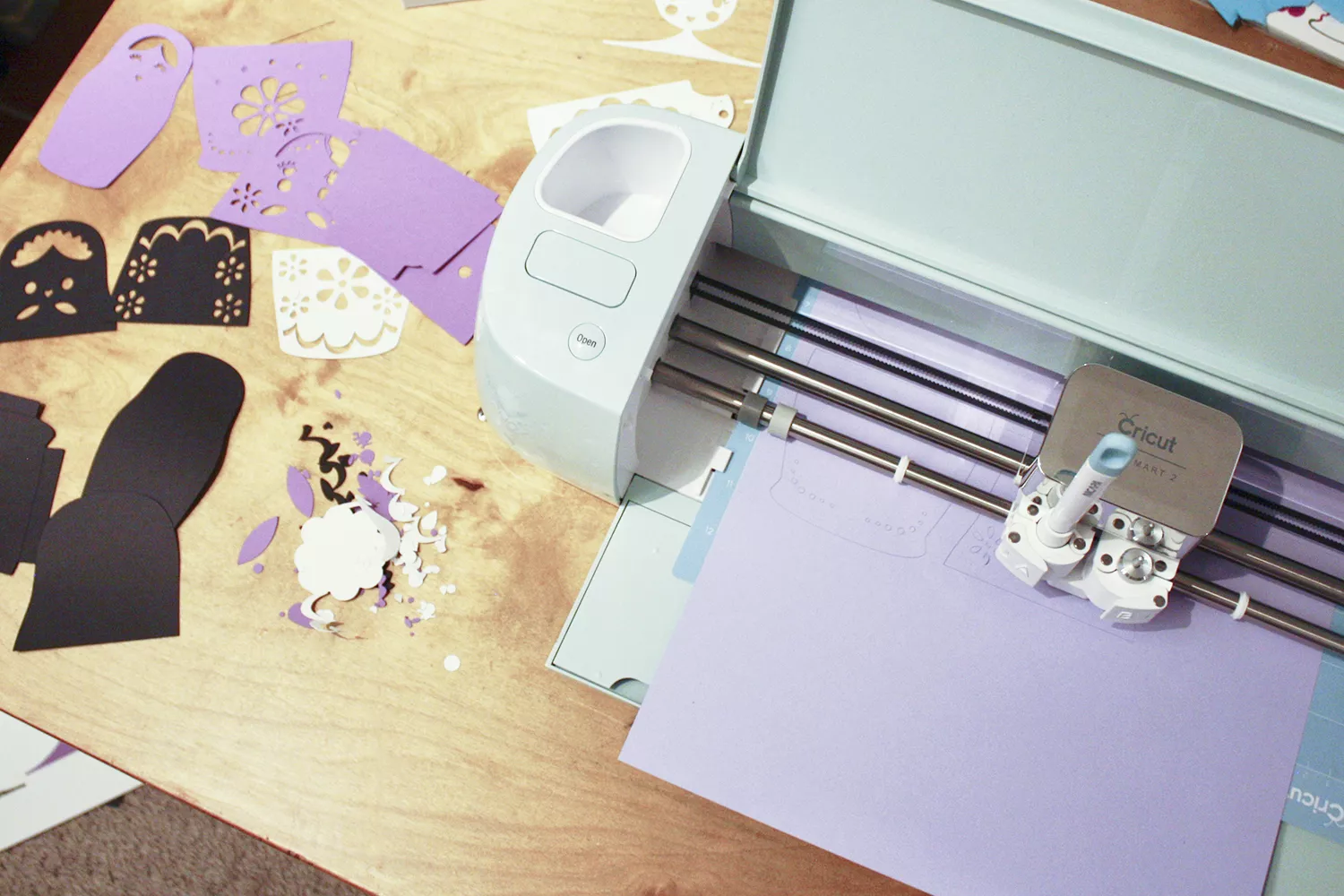
Cricut’s current Quick Start Guide lists the standard machine setup as:
- Cricut Explore Air 2 machine
- Power cord
- USB cord
- Premium Fine-Point Blade and housing
- Pen and accessory adapter
- Welcome Book and Quick Start Guide
- LightGrip 12 × 12-inch cutting mat
- Materials for a test cut
Retail bundles vary. A used machine, refurbished bundle or retailer package may include more or less than this list, so check the exact listing before comparing prices.
What Do You Actually Need With a Cricut Explore Air 2?
A common mistake is treating every accessory as essential. Start with the project.
Essentials
- A compatible cutting mat in usable condition
- The blade/tool required for your selected material
- Your project material: vinyl, cardstock, iron-on, sticker paper, etc.
- Design Space on a compatible device
- Project-specific finishing tools such as a weeding tool for vinyl when needed
Nice-to-Have Accessories
- Extra mats in different grip strengths
- Replacement Fine-Point blades
- Deep-Point Blade for compatible thicker materials
- Bonded-Fabric Blade for bonded-fabric work
- Scoring Stylus for folds
- Foil Transfer Tool for compatible foil projects
- Basic scraper, spatula, tweezers and weeding tools
Do not buy a large “must-have” bundle before you know what you make most often. A vinyl crafter and a card maker will quickly develop different accessory needs.
Cricut Explore Air 2 Blades and Tools
Cricut’s current tool compatibility guidance lists the Explore family with the Premium Fine-Point Blade, Deep-Point Blade, Bonded-Fabric Blade, Foil Transfer Tool and Scoring Stylus among its supported options. The Explore Air 2 does not use the Maker-only Rotary Blade or Knife Blade.
This distinction matters when a material guide recommends a tool. Seeing that “a Cricut can cut” a material does not mean every Cricut model can use the required blade.
Does the Cricut Explore Air 2 Have Bluetooth?
Yes. Bluetooth is built into the Cricut Explore Air 2. Cricut’s current connection guide still includes pairing instructions for Explore Air 2 and notes that older machines may request PIN 0000. The machine can also connect by USB to compatible computers.
Bluetooth is built into the Explore Air 2, and USB is also available for compatible computers. Cricut’s connection guidance includes troubleshooting steps for pairing problems, so connection issues should be handled through the documented pairing workflow rather than treated as a universal Air 2 hardware fault.
How Print Then Cut Works on Explore Air 2
The Explore Air 2 does not print. In a Print Then Cut workflow, Design Space sends your artwork to a separate printer. The printed sheet includes sensor markings, and the Explore Air 2 scans those marks and cuts around the printed artwork.
Cricut’s current guidance says Explore Air 2 and older models should use non-reflective white materials for Print Then Cut. Newer models have expanded color support, which is one practical reason sticker-heavy crafters may prefer a newer machine.
Who Should Buy the Cricut Explore Air 2?
Good fit if you:
- Want a lower-cost entry into full-size Cricut cutting
- Mainly make vinyl, cardstock, labels, iron-on and paper crafts
- Are happy using machine mats
- Find a used/refurbished Air 2 at a clear discount
- Do not need the Maker tool ecosystem
Consider another machine if you:
- Want long matless Smart Materials cuts
- Need Rotary Blade or Knife Blade workflows
- Plan frequent unbonded-fabric projects
- Want a newer Print Then Cut sensor
- Can buy a current-generation Explore for only a small additional cost
How Explore Air 2 Differs From a Manual Die Cutter
The Explore Air 2 cuts from digital designs; a manual machine such as the Sizzix Big Shot cuts the shape of a physical die. That difference changes the entire workflow.
If you prefer reusable physical dies, embossing folders and no design software, read our Sizzix Big Shot guide. If you want scalable digital designs, custom names, SVG uploads and changing sizes without buying another die, the Cricut workflow makes more sense.
Check current Sizzix Big Shot options on Amazon
You can also compare a wider range of machines in our die-cutting machine guide.
Cricut Explore Air 2 Frequently Asked Questions
What are the Cricut Explore Air 2 dimensions?
Cricut lists the Explore Air 2 at 22.17 × 7.01 × 5.91 inches (56.31 × 17.80 × 15.01 cm) and 10.98 pounds (4.98 kg). Leave extra space in front and behind the machine because cutting mats move through the machine during operation.
What is the maximum cutting size of the Cricut Explore Air 2?
The maximum regular cut is 11.5 × 11.5 inches on a 12 × 12 mat or 11.5 × 23.5 inches on a 12 × 24 mat. Print Then Cut has separate, smaller size limits that depend on the selected paper size.
What does a Cricut Explore Air 2 do?
It cuts compatible materials from digital designs and can also draw, write, score and use Cricut’s Foil Transfer Tool. With Print Then Cut, it can cut around artwork created by a separate printer. It is best suited to everyday craft materials such as vinyl, cardstock, iron-on and paper.
Can Cricut Explore Air 2 cut fabric?
Yes, especially bonded or backed fabric with the appropriate blade and mat. Cricut’s Bonded-Fabric Blade is compatible with Explore machines. If unbonded fabric and textile work are central to your projects, a Maker with Rotary Blade compatibility offers a broader fabric workflow.
Can Cricut Explore Air 2 cut wood?
It can cut selected thin wood products such as Cricut Natural Wood Veneer with an approved Deep-Point Blade setup, but it should not be described as a general wood cutter. The Knife Blade used for thicker materials such as balsa is Maker-only.
Does Cricut Explore Air 2 have Bluetooth?
Yes. Bluetooth is built in, and Cricut still provides current pairing instructions for Explore Air 2. USB is also available for compatible computer connections.
Does Cricut Explore Air 2 use Design Space?
Yes. Cricut’s current Design Space documentation tells Air 2 owners to choose the Cricut Explore Family machine selection. Current Help Center material and setup pages still include Explore Air 2-specific instructions.
Is Cricut Explore Air 2 still supported?
As of September 2026, Cricut still includes Explore Air 2 in current Help Center, Design Space, Bluetooth, material and setup documentation. That is strong evidence of current software/documentation support, although no manufacturer can be assumed to promise support indefinitely.
Is the Cricut Explore Air 2 discontinued?
It is an older-generation model and is no longer Cricut’s current Explore machine. Cricut’s US store currently shows certified-refurbished Explore Air 2 listings rather than positioning it as the newest model. That should not be confused with being unsupported: current official support documentation is still available.
Is the Cricut Explore Air 2 worth buying in 2026?
It can be worth buying if the price is meaningfully lower than a newer Explore and your projects are mainly mat-based vinyl, cardstock, iron-on and paper crafts. If the price gap is small, or you want matless Smart Materials, newer Print Then Cut capabilities or advanced Maker tools, compare a newer machine before choosing the Air 2.
Final Verdict
The Explore Air 2 has aged better than its original generation might suggest because Cricut still maintains Design Space and Help Center workflows for it, and its core jobs—vinyl, paper, iron-on, labels and everyday DIY cutting—remain useful.
But its best reason to buy in 2026 is value, not novelty. A discounted used or refurbished Air 2 can be a practical beginner machine. At a price close to a current Explore or Maker, its mat-only workflow, older Print Then Cut limits and narrower tool compatibility become much harder to ignore.
For me, the decision starts with three questions: What materials will you cut most often? Do you need matless or advanced-tool workflows? And how much cheaper is the Air 2 than the newer machine you are comparing? Answer those first, and the right choice becomes much clearer.
Existing Alternative Link Preserved
View the Silhouette CAMEO option previously referenced in this article